The real cost of a break
Don't go fully offline for short breaks. When your stream drops, the platform shows your room as offline, and viewers drift off to find someone who is live — not all of them come back, so you return to a quieter room than you left. An away screen keeps the room open, so there's still something there when you sit back down.
Doing it in OBS yourself vs. letting us handle it
Let Stream-Split handle your away screen. Leave OBS streaming — just don't switch scenes.
Putting up an away screen the old way means building a dedicated "BRB" scene in OBS and remembering to switch to it and back. Stream-Split's advantage is per site: an OBS BRB scene goes to every platform at once, while on your dashboard you can set one site to Away and keep the others Live — handy when only one room needs a break and the rest are still busy.
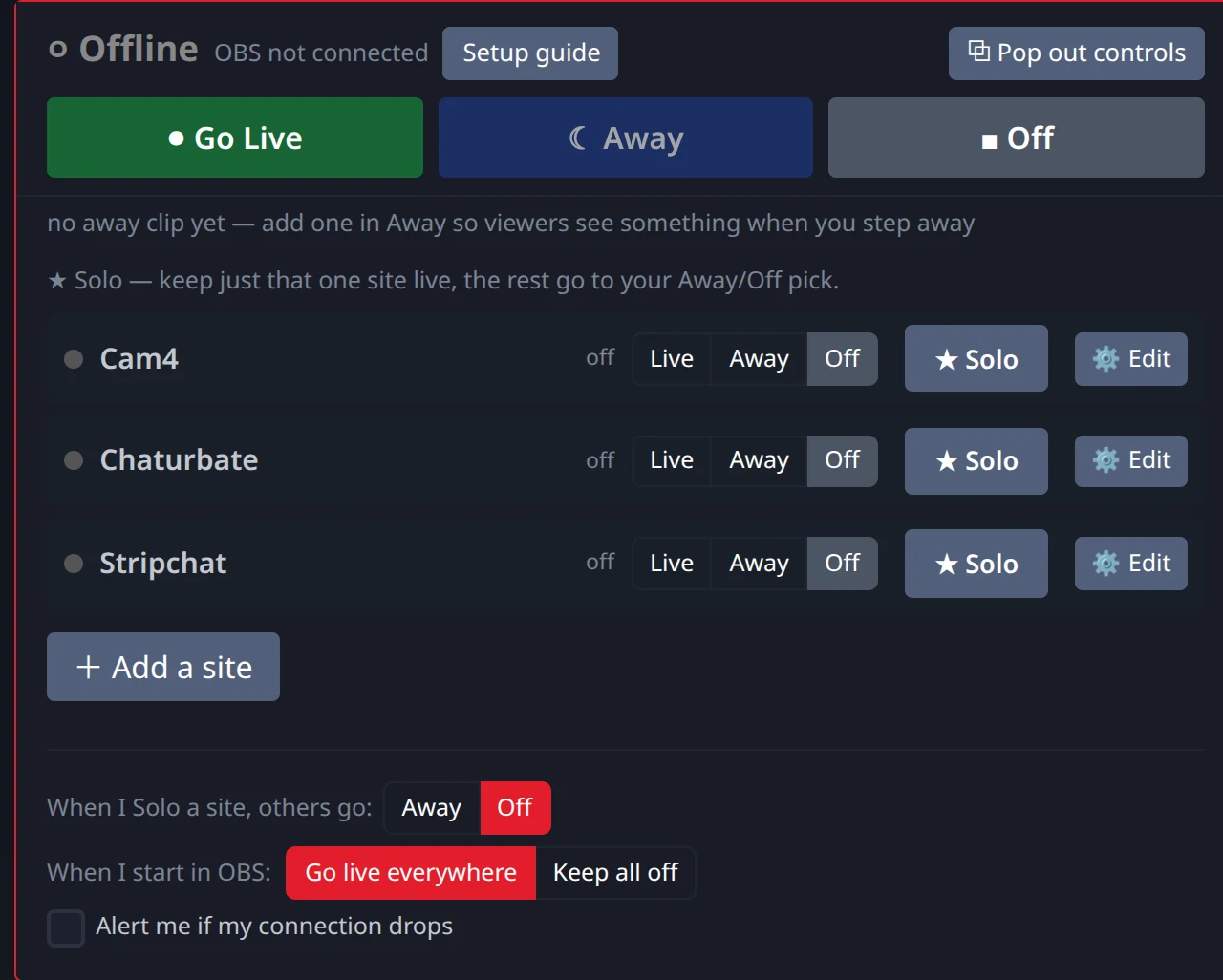
Instead of an OBS scene you have to remember to trigger, our away clip runs on Stream-Split. You pick a stock clip (Neon, Red Neon, Dreamy or Starlight) or upload your own to the dashboard. In the Away tab you choose what Away shows: your clip, a blurred cam (sound muted) or a frozen frame. Blur and freeze can show your own text over the picture. Switching a platform to "Away" swaps in that without disconnecting you — no scene changes in OBS and no local video decoding. You don't touch OBS at all.
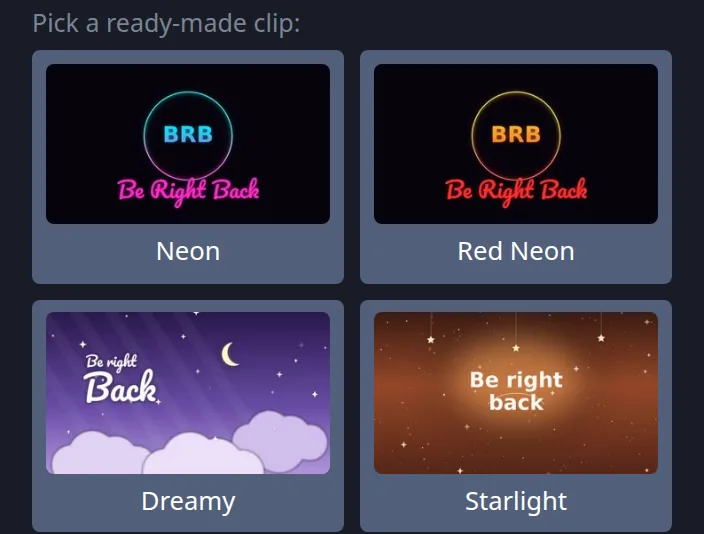
No clip yet? Set Away to blur instead: it needs nothing uploaded and mutes your sound, but it does need the recommended OBS settings (1080p at 5,000 kbps or 720p at 3,000 kbps, 30 fps).
Practical Craft: Making a Good Away Clip
If you choose to upload your own away clip instead of using a stock option, there is a craft to making one that retains viewers.
| Element | Best Practice | Why it matters |
|---|---|---|
| Length | Anything up to a minute works (we use the first 60 seconds), up to 50 MB. A still image with "Be right back" works too. | Too short, and the loop becomes visually annoying. Anything past 60 seconds isn't used. |
| The Loop Seam | Crossfade the last second into the first second. | A hard visual jump every 15 seconds breaks the illusion of a smooth stream and reminds viewers they are watching a recording. |
| Marking | Clearly display "Be Right Back" or "Away". | If you try to pass off a recorded loop as a live feed, viewers will quickly realize you aren't responding to chat and will leave feeling deceived. |
| Audio | Use low-volume ambient music or complete silence. | Do not include speaking or loud noises. If the loop restarts and the same exact sound plays repeatedly, it drives viewers away. |
When recording an away clip, the easiest method is to sit in your normal streaming chair, look at the camera, smile, and perhaps point to a digital "BRB" text overlay you've added in OBS. Record for 20 seconds. This maintains the visual continuity of your room's lighting and background. When it switches over, your viewers see the same room they were already looking at — just clearly marked as away.
What your viewers actually see
When you click the "Away" button in your dashboard, the site switches over within a few seconds (a clip is quickest, blur takes longest). You don't touch OBS, your room doesn't drop, and your viewers aren't kicked out. Our 1-second keyframe setting lets Stream-Split swap a site between Live, Away and Blur faster.
Instead of staring at an empty chair or a sudden offline error, your viewers see your away screen. Your chat room remains fully open and active, allowing your audience to keep talking and tipping while you take a break. Because the video swap happens on our side, your computer doesn't have to work harder to play the file. When you return and click "Live", your camera feed replaces the loop within about a second so you can pick up where you left off.
- Is it allowed to run a BRB loop instead of going offline?
- Keep it short and clearly marked as a break, and check your site's rules for long absences.