Cam splitting: how to stream to different cam sites at once
The complete, step-by-step guide to cam splitting. Learn how to go live on multiple platforms simultaneously using a single OBS broadcast and Stream-Split and one upload from your PC. Includes verified OBS settings for common site combinations.
What is cam splitting and multistreaming?
Cam splitting means broadcasting a single webcam feed to multiple adult platforms at once, like Chaturbate, Stripchat, and CamSoda. This lets you reach more viewers by reaching different audiences at the same time.
Instead of picking just one site and hoping for a busy room, you cast a wider net. Cam splitting allows you to broadcast to multiple communities at once without having to perform your show multiple times.
The problem with local OBS multistreaming
Multiple streams multiply your upload bandwidth requirements.
If you try to stream to four sites directly from your PC using OBS plugins, your computer has to upload four separate copies of your video feed. You need four times the upload speed to maintain those connections. If your upload can't carry all of them, every stream drops frames and buffers.
The solution: Stream-Split multistreaming
Send one feed from your PC and let the cloud handle the rest.
With Stream-Split, your computer only sends one stream to our servers, and we distribute it to Chaturbate, CamSoda, MyFreeCams, Stripchat, and your other chosen platforms. Your internet connection only needs enough upload for a single stream, however many sites it reaches.
Best OBS settings for cross-site compatibility
Set your OBS to match safe, cross-platform standards.
- Resolution: 1080p (1920×1080). On a weaker connection, use 720p (1280×720). Never upscale.
- Framerate: 30fps. Cam4, BongaCams and CamSoda publish 30fps as their maximum.
- Bitrate: 5,000 kbps CBR for 1080p, or 3,000 kbps for 720p.
- Keyframe Interval: 1s. A 1-second keyframe lets Stream-Split swap a site between Live, Away and Blur faster.
- Audio Bitrate: AAC at 160 kbps.
Below is our combination matrix for popular setups, aligned with platform specifications and our tested standards.
| Target Platforms | Resolution & FPS | Video Bitrate | Audio Bitrate | Keyframe |
|---|---|---|---|---|
| BongaCams + Cam4 | 1920x1080 @ 30fps | 4000 kbps | 160 kbps | 1s |
| BongaCams + Chaturbate | 1920x1080 @ 30fps | 5000 kbps | 160 kbps | 1s |
| BongaCams + CamSoda | 1920x1080 @ 30fps | 4000 kbps | 160 kbps | 1s |
| BongaCams + MyFreeCams | 1920x1080 @ 30fps | 4500 kbps | 160 kbps | 1s |
| BongaCams + OnlyFans | 1920x1080 @ 30fps | 4000 kbps | 160 kbps | 1s |
| BongaCams + Stripchat *est | 1920x1080 @ 30fps | 4000 kbps | 160 kbps | 1s |
| Cam4 + Chaturbate | 1920x1080 @ 30fps | 5000 kbps | 160 kbps | 1s |
| CamSoda + Chaturbate | 1920x1080 @ 30fps | 5000 kbps | 160 kbps | 1s |
| Chaturbate + MyFreeCams | 1920x1080 @ 30fps | 5000 kbps | 160 kbps | 1s |
| Chaturbate + MyFreeCams + Stripchat *est | 1920x1080 @ 30fps | 5000 kbps | 160 kbps | 1s |
Handling platform conflicts (Bitrate ceilings vs floors)
Target a bitrate that satisfies recommended ranges across your sites.
Different platforms publish different bitrate recommendations. For example, Cam4 suggests 4,000 kbps for 1080p based on upload speed, while Chaturbate's 1080p minimum is 5,000 kbps and it flags streams below that. Our standard 5,000 kbps CBR meets Chaturbate's minimum, and Cam4 accepts it in our testing.
Similarly, MyFreeCams recommends 4,500 kbps for 1080p. 5,000 kbps CBR covers that too. On a weaker connection, 720p at 3,000 kbps CBR fits every site in this guide.
The feasibility of 60fps broadcasting
30fps, unless every site in your lineup takes 60.
If any site in your lineup only handles 30fps, your single broadcast feed must be 30fps. Cam4, BongaCams and CamSoda publish 30fps as their maximum, so once one of them is in your lineup, stay at 30.
Chaturbate supports up to 60fps, and Stripchat accepts 60 too: viewers can switch a 60fps stream between 60 and 30. If those are your only sites and your camera really films at 60, you can use it, but raise the bitrate: Chaturbate flags 1080p at 60fps below 7,500 kbps, even though its tables only list 30fps figures.
Setting up OBS, from nothing
If you have never opened OBS before, start here. If it is already running with your camera on screen, skip to step 5 — that is where the settings that matter to cam sites begin.
- Install OBS. Get it from obsproject.com. It is free, and it is the same OBS everyone means when they say OBS. Windows, Mac and Linux all work.
- Close the wizard it opens with. The first time you run OBS it offers to configure itself
for you. Click Cancel. It measures your connection and picks settings for general streaming,
which are not the settings cam sites ask for — and you are about to set those yourself. You can
always run it later from the Tools menu.
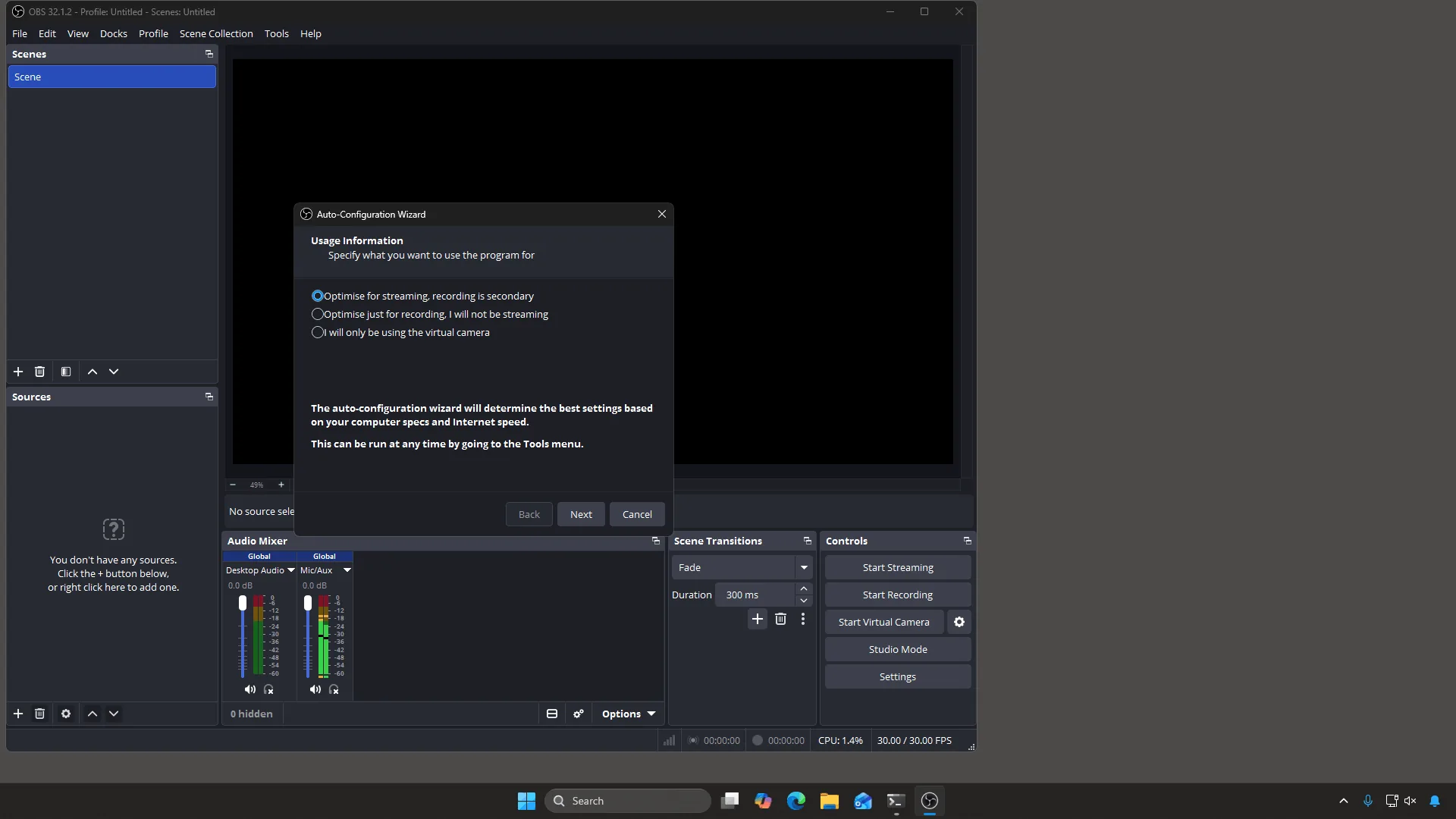
This appears the very first time you open OBS. Cancel it — the numbers it picks are not the ones cam sites want. - Add your camera. You will be looking at a black square and the words
“You don't have any sources.” That is normal — OBS does not know what to show yet.
Click the + under Sources, choose Video Capture Device, give it any name, then
pick your webcam in the Device box. Your camera appears in the preview.
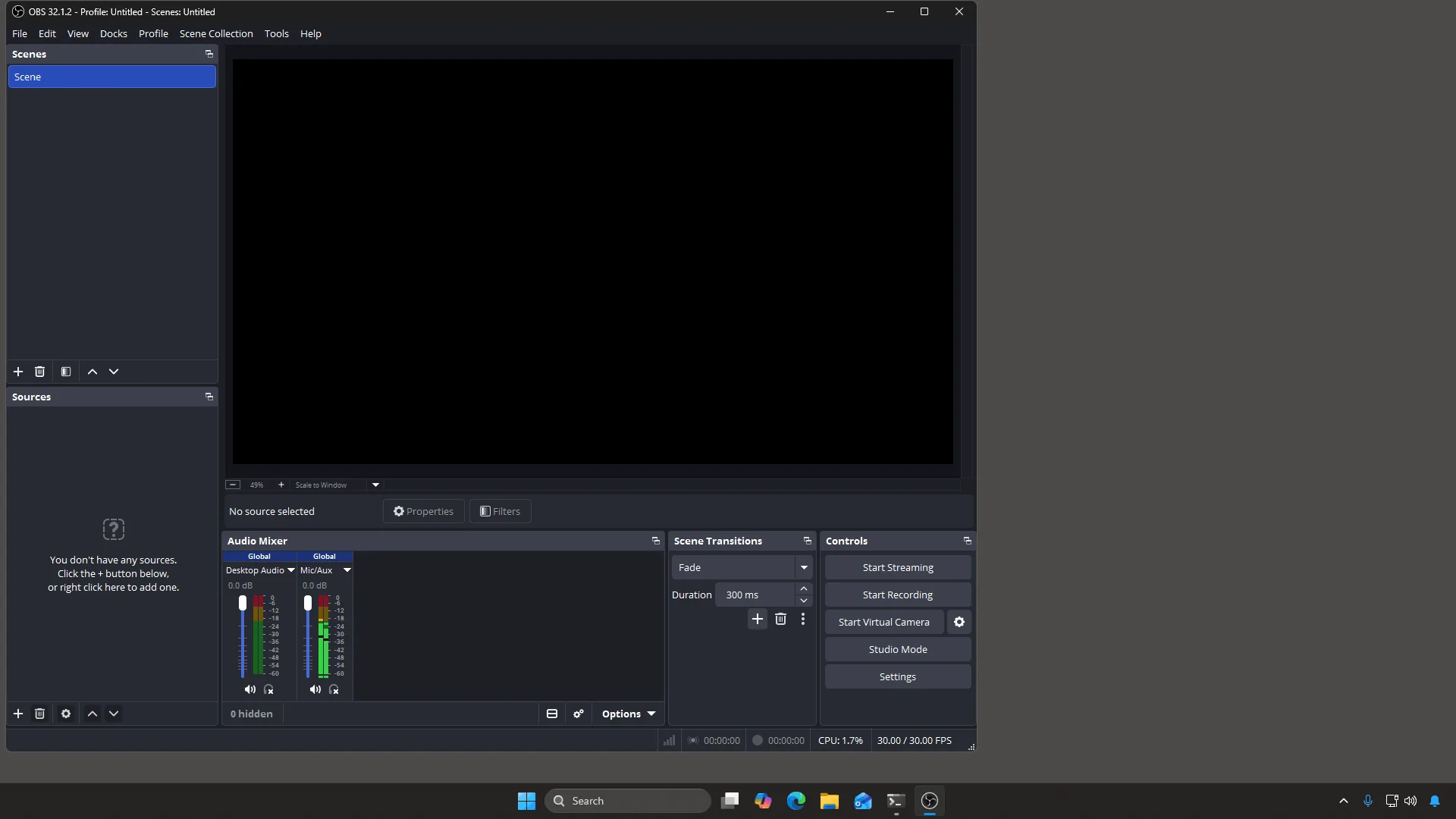
Before you add a camera. The black square is not a fault — there is simply nothing to show yet. 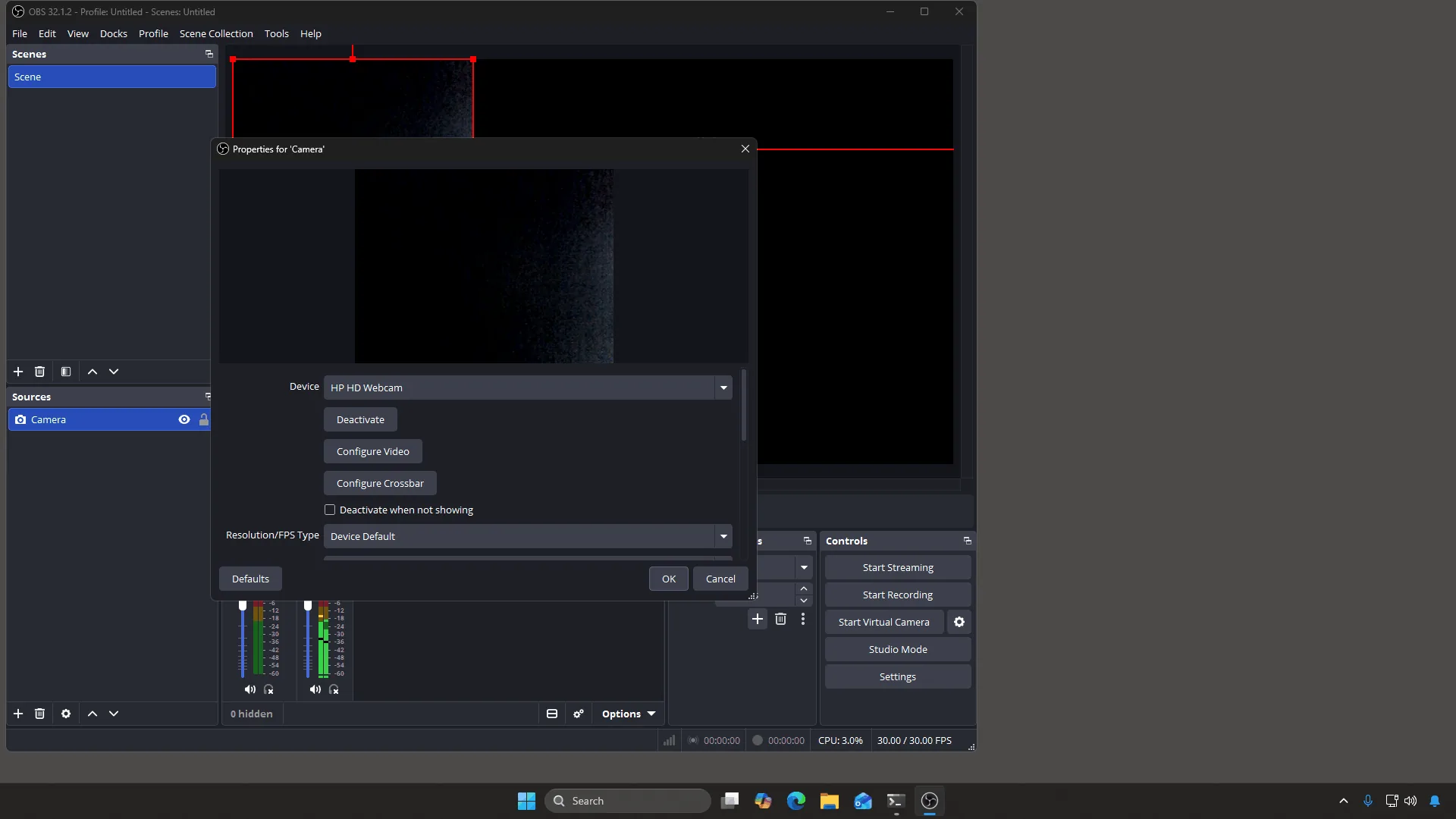
Pick your webcam in the Device box. Leave Resolution/FPS Type on Device Default for now. - Check your microphone. Look at the Audio Mixer along the bottom. Talk. If the Mic/Aux bar moves, you are being heard. If it does not, open Settings → Audio and choose the right microphone under Mic/Auxiliary Audio.
- Switch Output Mode to Advanced. Open Settings → Output. It opens in Simple mode, which hides the keyframe and B-frame controls cam sites care about — they are not hidden because they are dangerous, just because most people never touch them. Change the Output Mode box at the top to Advanced.
- Set your video size. In Settings → Video, set Base (Canvas) and
Output (Scaled) to the same thing, normally 1920×1080, and FPS to 30. Never set
Output larger than Base — that is upscaling, and it makes your picture soft without making it
better.
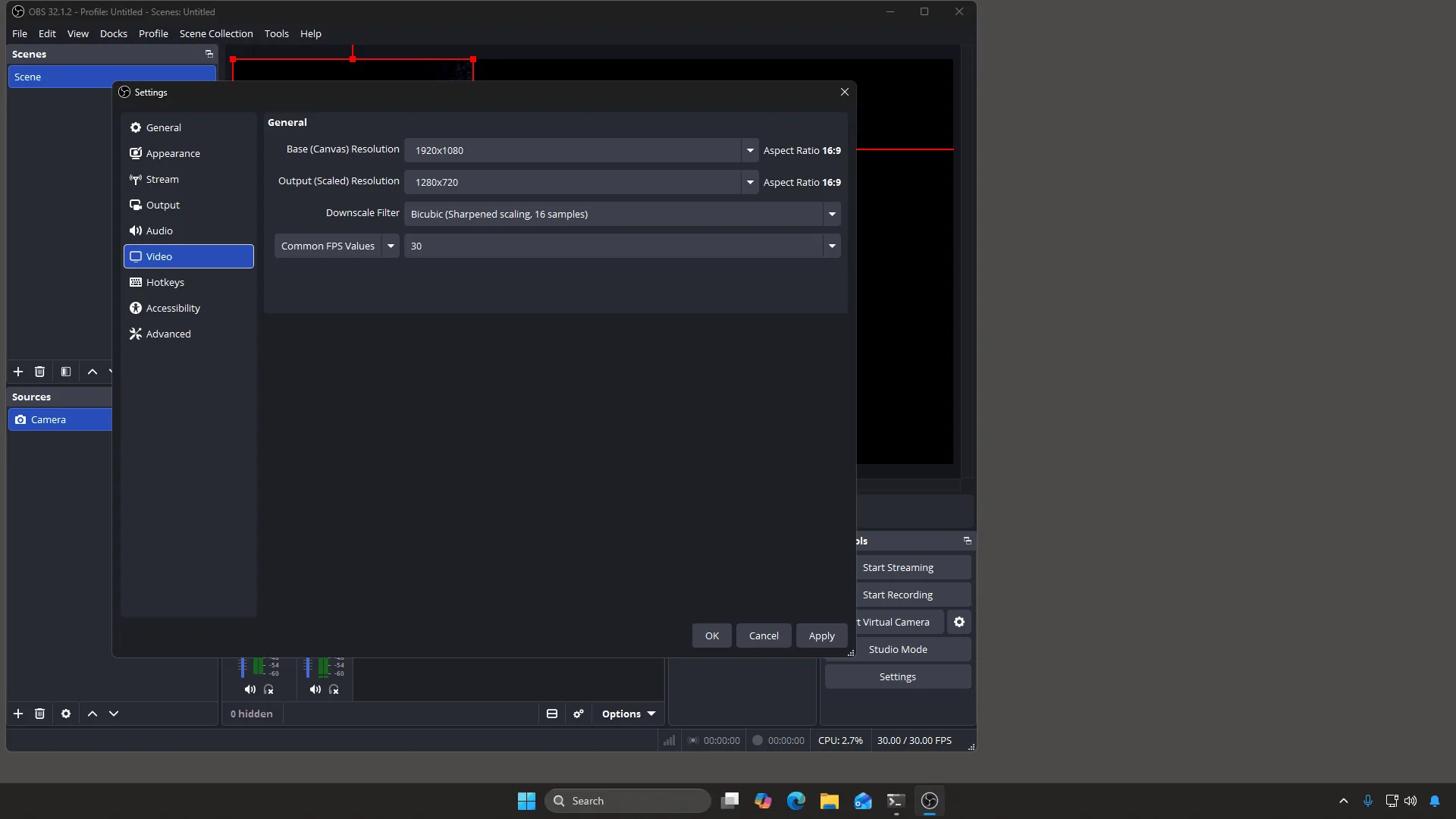
Base is what you work in. Output is what gets sent. Matching them is the simple, safe choice. - Set the encoder and the numbers. Back in Settings → Output, pick a hardware
encoder if you have one (NVIDIA NVENC, AMD, or Apple VT), otherwise x264. Then set
Rate Control to CBR, Bitrate to 5000 kbps (or 3000 kbps for 720p),
Keyframe Interval to 1 second, Profile to high, and B-frames to 0.
Keyframe Interval starts at 0 s, which means “decide for me” — set it to 1 second: it's what Cam4 and MFC ask for, and it lets Stream-Split swap a site between Live, Away and Blur faster.
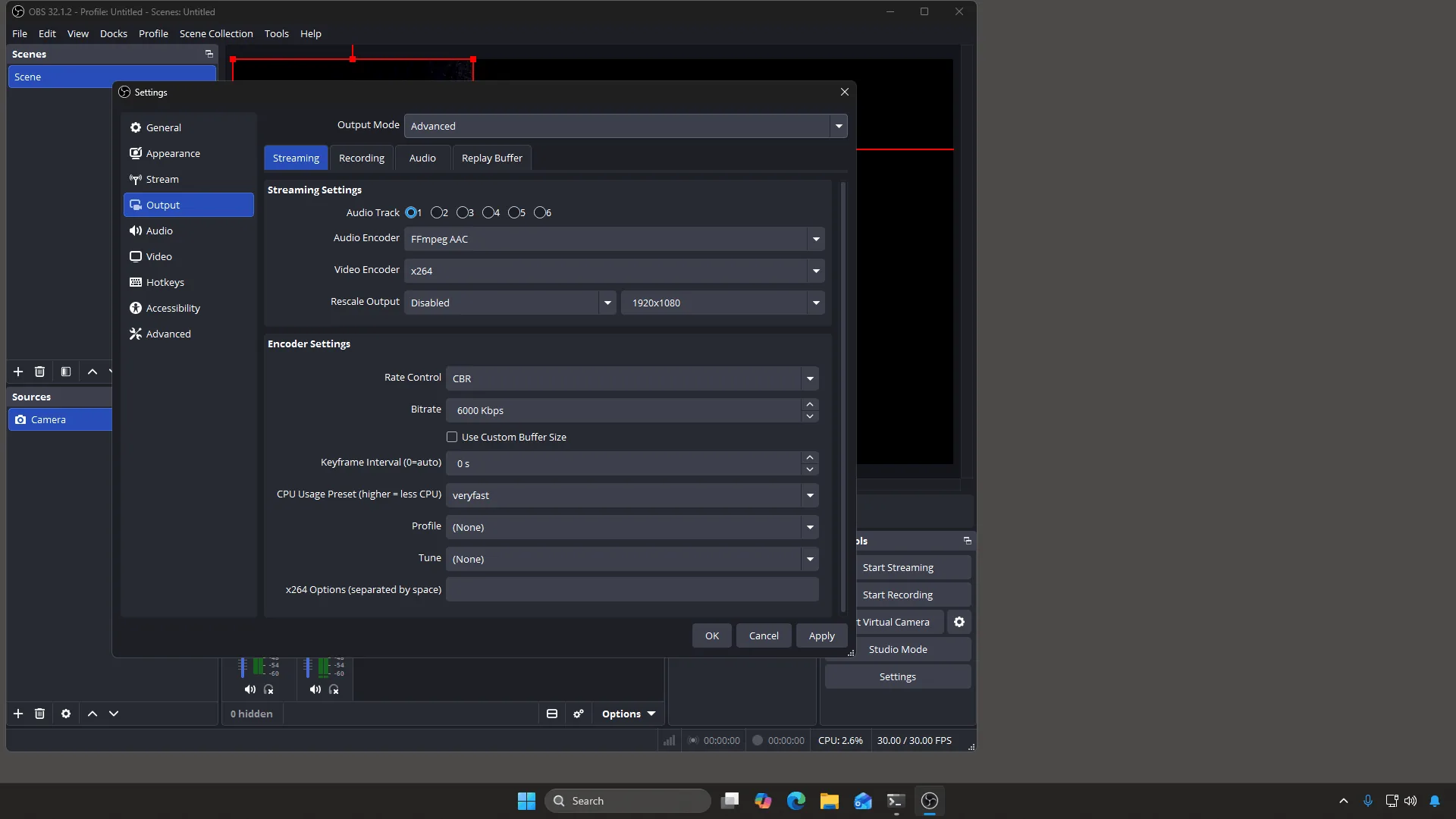
The defaults you are changing: Keyframe Interval reads 0 s and Profile reads (None). - Paste your server and key. In Settings → Stream, set Service to
Custom…. Two boxes appear: Server and Stream Key. Copy both from your
dashboard and paste them in. OBS hides the key behind dots once you click away, which is what you
want if anyone is ever looking over your shoulder. Click OK.
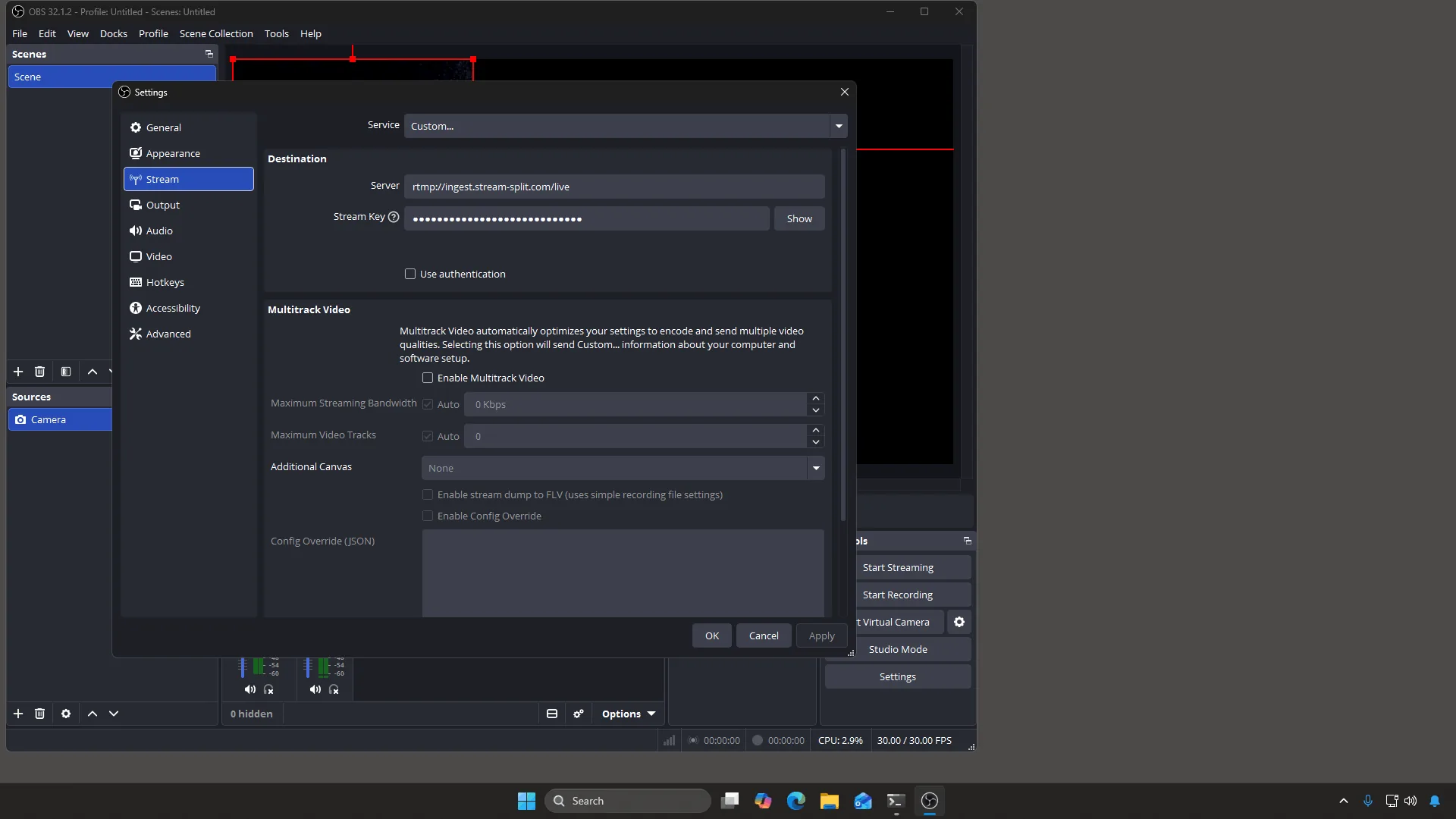
The two boxes everything depends on. Server and key both come from your dashboard. - Go live. Click Start Streaming, bottom right. Nothing goes out until you press it. Stripchat, Cam4 and BongaCams also have their own start button on the site.
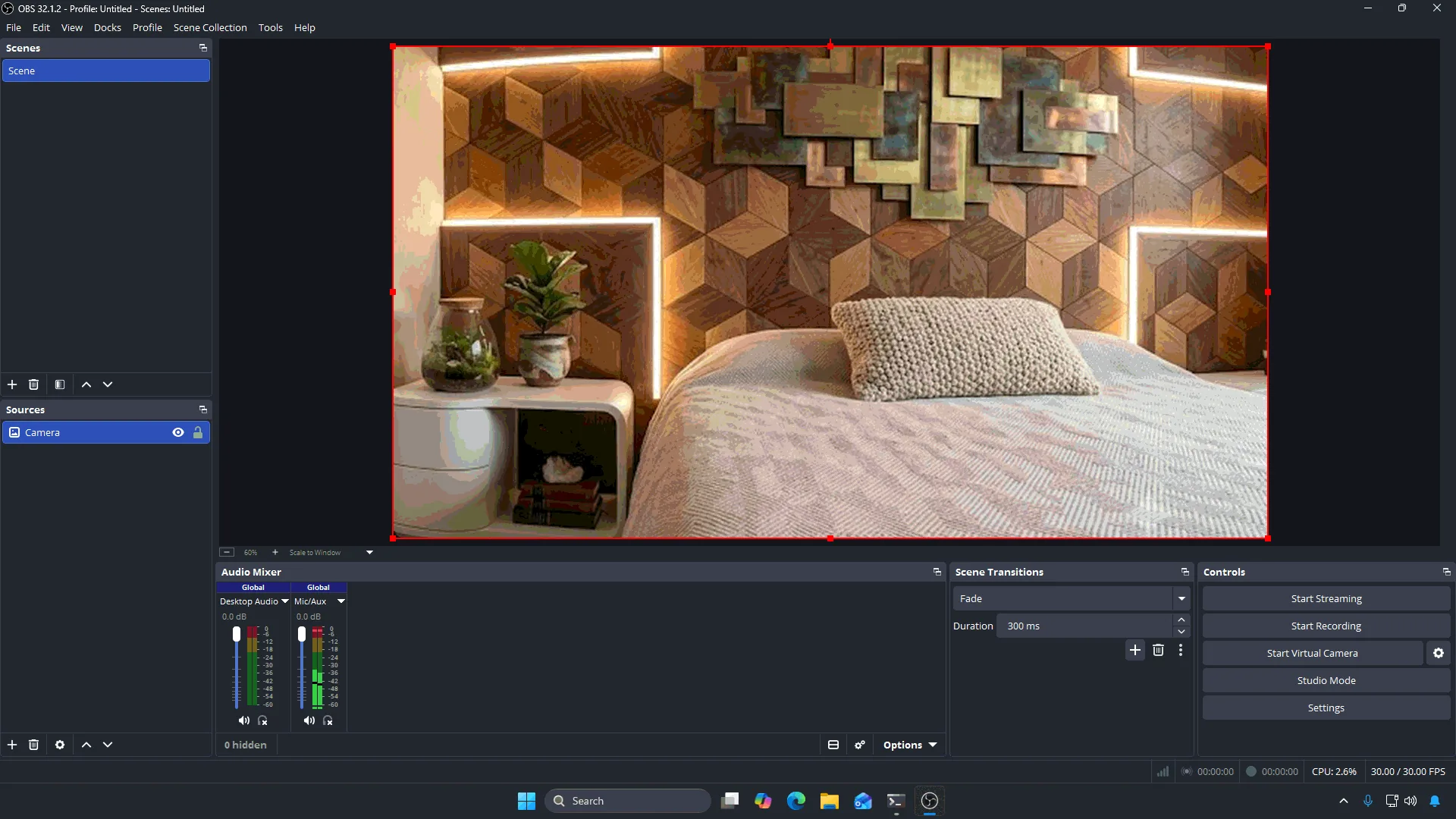
Bottom right, above Start Recording. Video is in the preview and the audio meters are moving — but nothing reaches any site until you click it. - Check it worked. A status bar appears along the bottom of OBS showing your bitrate and a coloured square. Green means the stream is getting through. Then look at your dashboard: each site you added shows whether it is receiving you. That is the real confirmation — OBS only knows it sent the video, not that the site liked it.
Once this is done it stays done. Next time you broadcast you open OBS and press Start Streaming.
Troubleshooting dropped frames and stability
If viewers report lag despite OBS showing a green square, the platform may be struggling with mismatched video settings. Make sure your bitrate aligns with recommended targets and stays within your internet connection's stable upload capacity.
For keyframes, set a 1-second interval in OBS. It's what we use on every site: Cam4 and MFC ask for exactly that, and it lets Stream-Split swap a site between Live, Away and Blur faster.
Frequently Asked Questions
- Can I stream at 60fps on all cam sites?
- Not on all of them. Cam4, BongaCams and CamSoda publish 30fps as their maximum, so with any of them in your lineup, stay at 30. Chaturbate supports 60fps and Stripchat accepts it, so a lineup of just those two can run at 60 if your camera films at 60. Send at least 7,500 kbps at 1080p60: Chaturbate flags less as too low.
- What happens when cam sites have conflicting bitrate rules?
- Aim for a standard setting that satisfies recommended targets across your platforms. Our standard 5,000 kbps CBR at 1080p meets Chaturbate's 1080p minimum and MFC's 4,500 suggestion, and Cam4, which suggests 4,000, accepts it in our testing. On a weaker connection, use 720p at 3,000 kbps.
- Why is my stream lagging on one site but fine on others?
- If OBS shows a stable connection but one site lags, check your settings against our standard (1-second keyframe, 5,000 kbps CBR, 30fps) and make sure your upload can hold that bitrate.
- Do I need high upload speed for multistreaming?
- If you use local OBS plugins, you need enough upload bandwidth for every site combined because you upload separate streams. With Stream-Split, you only upload a single stream from your PC, and Stream-Split distributes it to all your connected sites.