1. Open the OBS Stats window
The coloured square in OBS's status bar shows congestion, and next to it is a dropped-frames count.
In OBS, click View → Stats in the top menu bar. Keep this window open during your next broadcast.
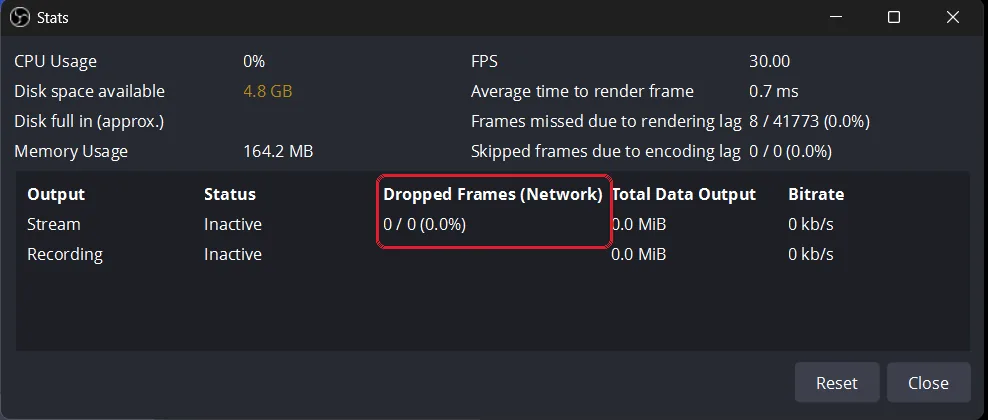
The Stats window shows whether the trouble is on your PC or your connection — use this table as your decision tree while the stream is actively stuttering.
| OBS Stat Metric | What It Means | The Diagnosis |
|---|---|---|
| Frames missed due to rendering lag | Your computer cannot draw the video frames fast enough. | Computer is overloaded |
| Skipped frames due to encoding lag | Your computer cannot compress the video fast enough. | Computer is overloaded |
| Dropped Frames (Network) | Your computer is fine, but your internet is failing to send the video. | Internet/Wi-Fi issue |
| All metrics read 0%, but stream stutters | OBS sent everything perfectly, but something further down the line — on the way to the site, at the site, or on the viewer's side — can still go wrong. | Check each site's dashboard row |
2. Branch 1: Fixing Hardware Overload
If "Missed/Skipped Frames" is above 0, your computer is overloaded. It's a render or encode problem on your own PC.
- Offload to the GPU: Switch your encoder in OBS from x264 to NVENC H.264 (or AMD HW H.264). This takes the heavy lifting off your main processor.
- Drop to 30fps: Broadcasting at 60fps doubles the workload, so dropping your OBS settings to 30fps roughly halves the work.
- Close other programs: Close Chrome tabs, game launchers, and anything else running in the background, especially anything else that captures or re-encodes video.
3. Branch 2: Fixing Router/ISP Issues
If "Dropped Frames (Network)" is above 0, your internet is struggling. OBS is building every frame correctly, but your connection can't push the data out fast enough to keep up.
- Use an Ethernet cable: Wi-Fi drops frames because the signal gets interrupted by walls or other devices. A physical cable gives your stream a direct, uninterrupted path to the router.
- Switch to 720p: If you still drop frames, switch to 720p at 3,000 kbps — the 720p option in your dashboard's Set up OBS panel. 720p at 3,000 still meets the minimum each site publishes (OBS settings for cam streaming).
4. Branch 3: The "Zero Dropped Frames" Platform Drop
If all three Stats counters stay at 0 but viewers complain about lag, the problem is after your stream leaves home: on the way to the site, at the site, or on the viewer's side.
OBS only knows what happens on your computer, so it can't see any of that.
A VPN won't fix this. If you need one for privacy, the VPN panel on your dashboard suggests the nearest exit.
What you can do:
- If you stream straight to CamSoda, try a different server region in OBS. Most sites only have one server.
- Use Stream-Split: OBS's stats only cover the hop to us. Each site's row on your dashboard shows its own connection — if one site is having trouble, the row says so, and Stream-Split keeps retrying it for you.
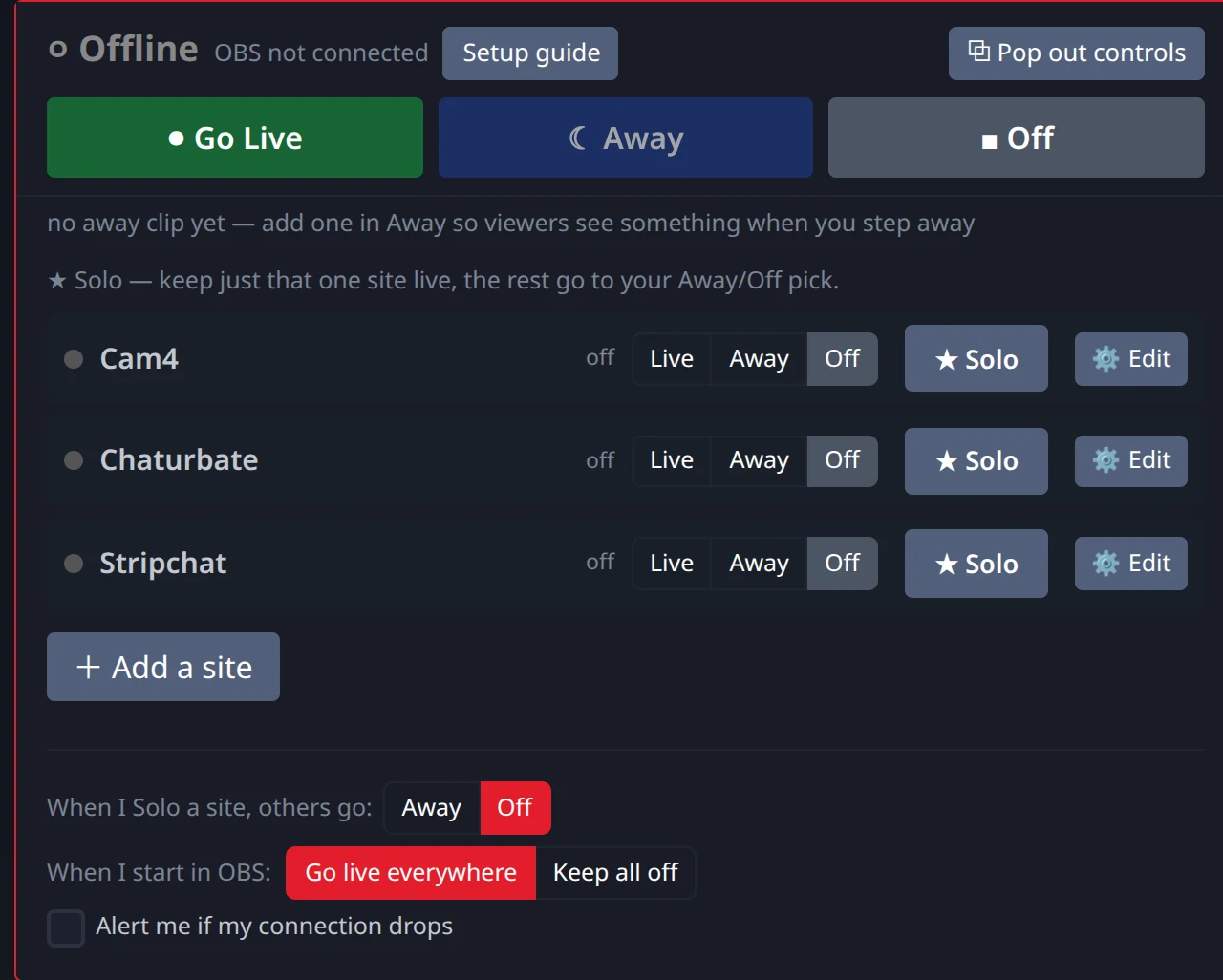
What the status next to each site name means:
- streaming: that site is receiving your stream.
- connecting…: the connection to that site is being set up.
- — waiting to connect: nothing is going to that site yet, usually because OBS isn't streaming to us.
- connect error: the connection to that site failed. Stream-Split keeps retrying it; if it doesn't clear up on its own, re-enter that site's key.
- <site>: key rejected: the site refused the key. Copy a fresh one from the site and paste it with ⚙ Edit on that row.
If one site's row keeps showing trouble while the others are fine, contact that site's support.
FAQ
- Why does OBS say 0 dropped frames but my stream still cuts out on the site?
- OBS can only report frames it failed to send from your PC, so a clean count doesn't rule out trouble further down the line. Each site you're streaming to has its own row on your Stream-Split dashboard — if that site is having connection trouble, the row says so, and Stream-Split keeps retrying it for you.
- Should I use a VPN to fix cam streaming disconnects?
- No — a VPN just adds hops and won't fix a bad connection to a specific site.