How to multistream to multiple cam sites at once
Multistreaming — what many models call cam splitting or restreaming — means going live on several cam platforms from a single broadcast. Done locally it punishes your CPU and upload; done in the cloud it's effortless. Here's how to stream to multiple cam sites at once with OBS and Stream-Split.
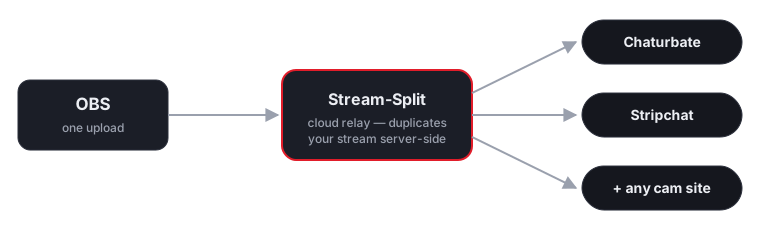
Why not just multistream from OBS directly?
OBS can technically push to more than one server with plugins, but every extra destination means encoding and uploading another full stream from your own PC. That doubles or triples your CPU load and upload bandwidth, and a weak connection drops frames on every site at once.
A cloud relay flips this around: your computer uploads one stream, and the relay duplicates it to each platform. Your PC's load stays flat no matter how many sites you add.
Step by step
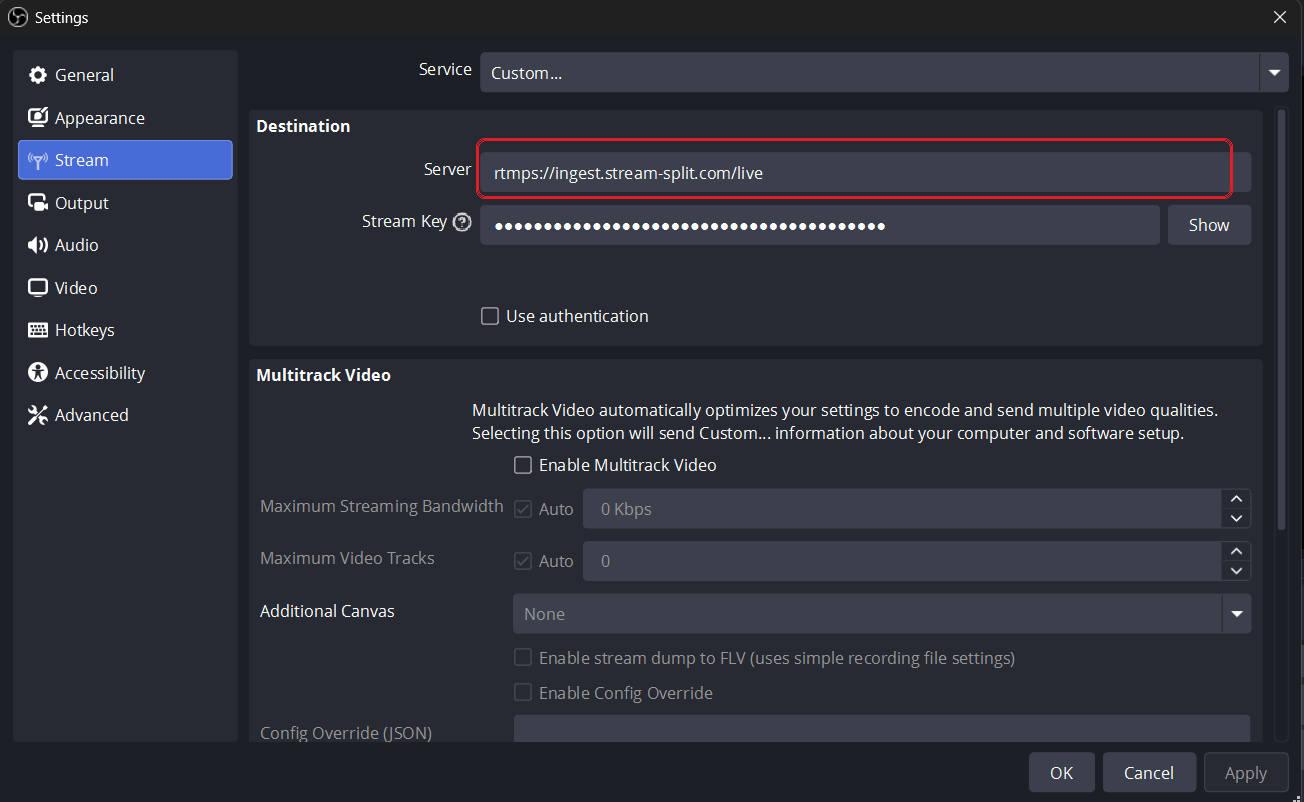
Step 1 — point OBS at the relay. In OBS open Settings → Stream, set Service to Custom…, paste the relay server URL and your Stream-Split stream key, and hit OK. That is the only OBS change you make — resolution, bitrate and encoder stay whatever you already stream with (sensible defaults are in our OBS settings guide).
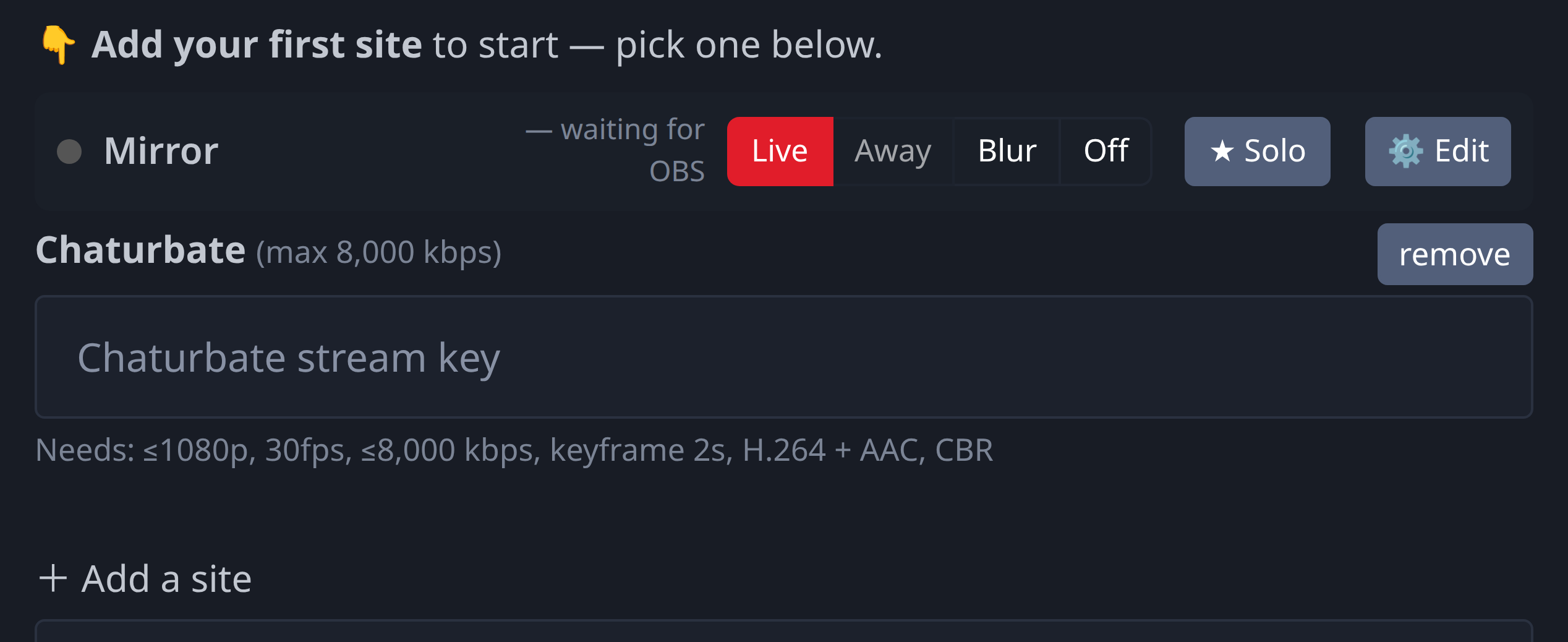
Step 2 — add your cam sites. In your dashboard, click Add a site, pick the platform, and paste that site's own stream key (from its broadcaster/OBS page). Keys save as you type — no separate save button — and each site's row shows the exact caps that platform accepts, so you can see at a glance whether your OBS output clears them.
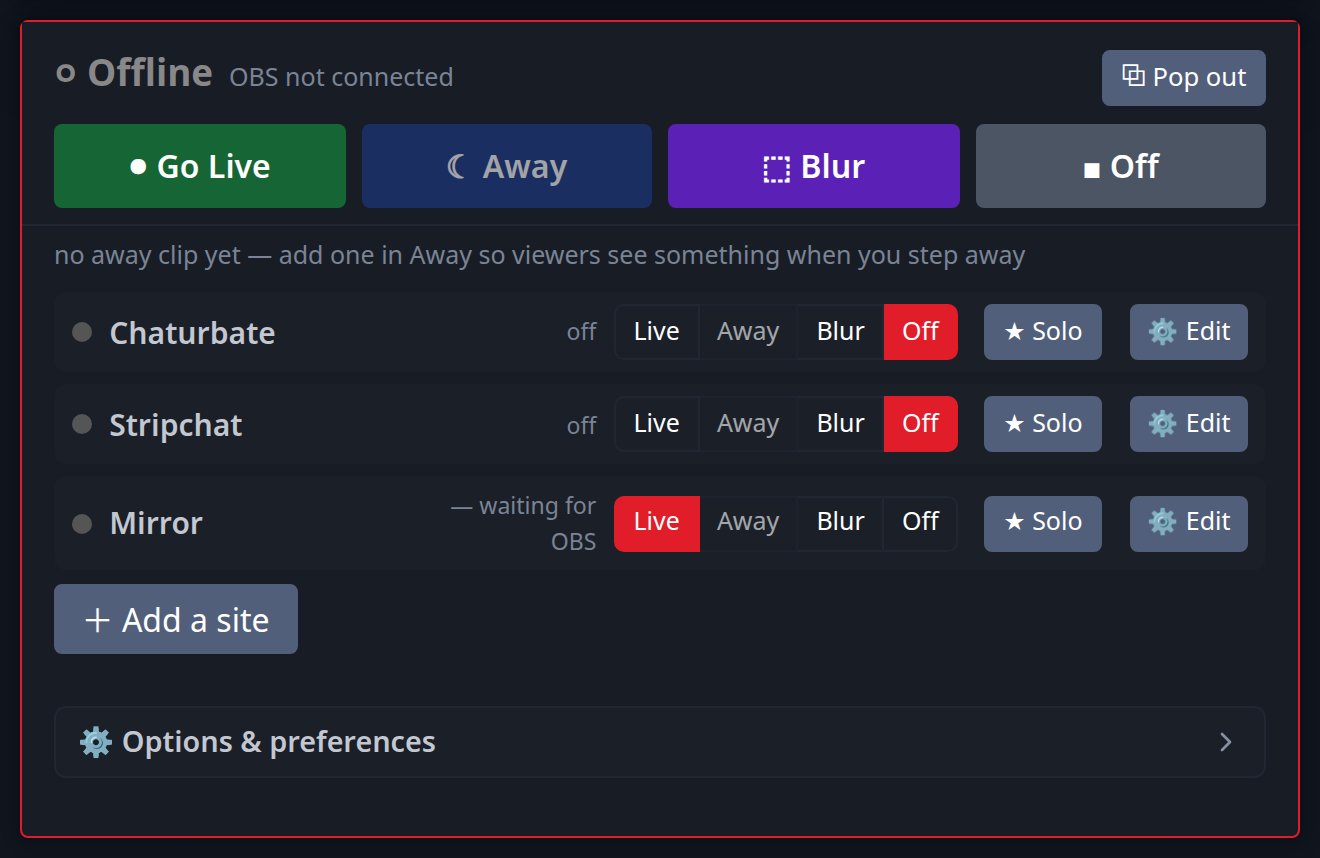
Step 3 — go live everywhere. Hit Start Streaming in OBS, then flip each site's row to Live (or use Go live everywhere). Every platform receives the same broadcast at full quality. From here each site is independent: switch any one of them to Away, Blur or Off without touching the others — and if one room needs your full attention, Solo keeps it live and parks the rest in one click (more on that in the private-show guide).
Is multistreaming even allowed?
Usually, yes — but the rules vary by site, and it's a different question from whether you're allowed to mention other platforms while live. Most sites that permit simultaneous broadcasting still ban advertising a competitor in your room, and a couple document fines for it. Before you pair up sites, skim our site-by-site breakdown of official terms — it covers Chaturbate, Stripchat, CamSoda, Cam4, BongaCams and MyFreeCams from their own published rules, including the distinction between broadcasting elsewhere and promoting elsewhere.
Keep one site private with away clips
A common workflow is keeping one platform live for a private show while the others quietly loop a clip you choose, instead of going black. With per-site control you can flip any platform to Live, Away or Off in one click — and the Solo button does the whole swap at once: your chosen room stays live, every other room switches to the fallback you picked. What the away clip actually shows, and whether platforms allow it, is covered in the BRB guide; what the rules say when a private starts is in the private-show guide.
FAQ
- Can I really stream to multiple cam sites at the same time?
- Yes. One OBS broadcast is duplicated in the cloud to every platform you add, live at the same time, with no extra upload from your computer.
- Does multistreaming reduce quality?
- Not with a relay — your stream is passed through unchanged, so every site gets the same resolution and bitrate you send from OBS.
- Is multistreaming the same as “cam splitting”?
- Yes. Cam splitting, split-camming, restreaming and multistreaming all mean the same thing: one broadcast going out to several cam sites at once. Models often shorten the site names too — CB for Chaturbate, MFC for MyFreeCams, SC for Stripchat.
- Is it free?
- Stream-Split is free to start and has a no-signup trial.