Best OBS settings for cam streaming (single & multi-site)
Good OBS settings make the difference between a crisp, stable cam show and a blurry, stuttering one. From picking your encoder to resolving conflicts when multistreaming to different sites, here is the definitive guide based on real platform specifications.
Just tell me what to set
Start by changing your OBS Output Mode to Advanced. These are the exact numbers you need to type in to get a crisp, stable show without stuttering or disconnecting.
- Encoder: Pick NVIDIA NVENC, Apple VT, or AMD HW if you have them. Use x264 only if you don't.
- Rate Control: Always CBR. This stops the picture from blurring when you move on camera.
- Bitrate: 5000 kbps for a 1080p canvas, or 3000 kbps for 720p if your internet upload speed is limited.
- Keyframe Interval: 1 or 2 seconds. Never leave it on 0, or viewers get stuck on a loading screen.
- Profile: High. It improves visual quality and most major platforms recommend it.
- B-frames: 0. Higher numbers add an unnecessary delay between you and your chat room.
1. The baseline settings for a static cam show
Switch your OBS Output Mode to Advanced. The "Simple" mode hides the settings you need to stop cam sites from disconnecting you.
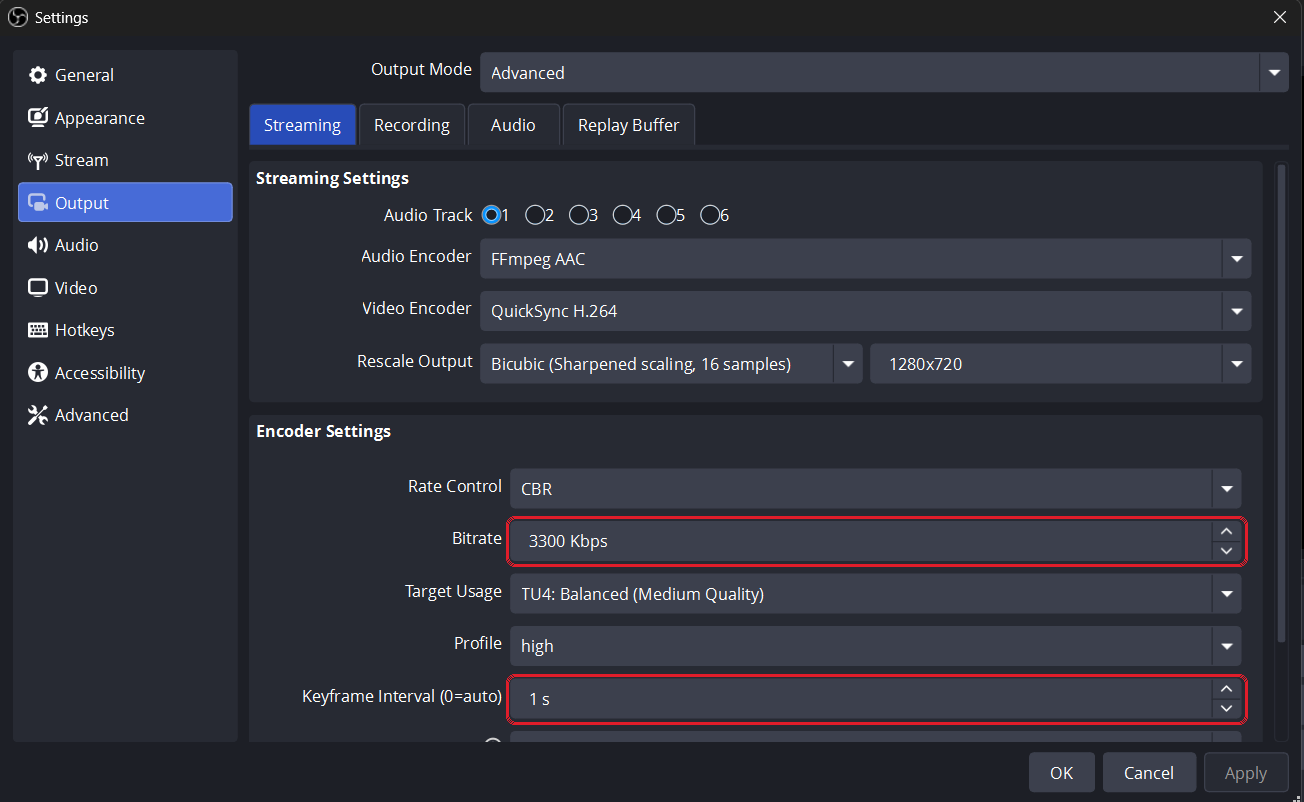
Essential Advanced Encoder Settings
- Set Rate Control to CBR. If you use VBR, the site will disconnect you for sending too much data when you move on camera.
- Set Keyframe Interval to 1 or 2. Never leave it on 0 (Auto). If you leave it on Auto, your viewers will stare at a black loading screen for longer when they enter your room.
- Set Profile to High. It gives better visual quality and every major site recommends it.
- Set B-frames to 0. Higher numbers add delay to your stream.
Encoder: Pick the right one for your computer
Pick one of these H.264 options from the Encoder dropdown. Do not pick HEVC/H.265 or AV1, because cam sites don't accept them yet.
- NVIDIA NVENC H.264: Pick this if you have an NVIDIA graphics card.
- Apple VT H264 Hardware Encoder: Pick this if you are on a Mac.
- AMD HW H.264 (AMF): Pick this if you have an AMD graphics card.
- QuickSync H.264: Pick this if you have an Intel processor with built-in graphics.
- x264: Pick this if you don't have the options above. It uses your computer's main processor (CPU).
2. Canvas vs Output Resolution: Answering the 720p question
Keep your Canvas and Output resolution the same (e.g., both 1080p).
If you shrink the Canvas to 720p, you force your computer to constantly resize your 1080p camera, which wastes CPU and makes your computer run hot.
The only reason to change a resolution is if your upload speed is too slow for 1080p. In that case, drop your Output (Scaled) Resolution to 720p, but leave your Canvas at 1080p. Never upscale (e.g., a 720p camera scaled to 1080p output)—it just makes your stream blurry and wastes your upload speed.
3. The Multi-Site Conflict: Use the highest minimum
When streaming to multiple sites, use the highest minimum bitrate required by any of your sites.
For example, Cam4 caps at 4000 kbps, but Chaturbate has a minimum floor of 5000 kbps. If you send 4000, Chaturbate will flag your stream as bad quality. If you send 5000, Cam4 will silently accept the extra data.
The rule: The site with the highest minimum requirement wins.
4. The Exact Multi-Site Settings Matrix
Chaturbate sets the floor at 1080p. Its 5,000 minimum is the highest here, so 5,000 is what the broadcast runs at.
MyFreeCams sets the floor at 720p. Its 3,000 minimum is the highest here, so 3,000 is what the broadcast runs at.
OnlyFans publishes no encoder settings at all, so it is not plotted here — set whatever your other sites need and it will take it.
the site setting the floor the others what to set in OBS
Here are the exact resolution, bitrate, and keyframe intervals you should use in OBS for common platform combinations to avoid being disconnected.
| Platform Combination | Resolution & FPS | Target Bitrate | Keyframe | Conflict Resolution & Notes |
|---|---|---|---|---|
| Chaturbate + Stripchat | 1080p @ 30fps | 5000 kbps | 2s | Both sites accept 5000 kbps. |
| Chaturbate + Cam4 | 1080p @ 30fps | 5000 kbps | 1s | Use 5000. Keyframe drops to 1s to satisfy Cam4. |
| Chaturbate + MyFreeCams | 1080p @ 30fps | 5000 kbps | 1s | Use 5000. Keyframe 1s to satisfy MFC. |
| MyFreeCams + Cam4 | 1080p @ 30fps | 4500 kbps | 1s | Use 4500 to satisfy MyFreeCams. |
| BongaCams + CamSoda | 1080p @ 30fps | 4000 kbps | 2s | Both platforms accept 4000 kbps. |
| CamSoda + Stripchat | 1080p @ 30fps | 3000 kbps | 2s | Both accept down to 3000 kbps, useful for lower-speed uplinks. |
| Chaturbate + Stripchat + CamSoda | 1080p @ 30fps | 5000 kbps | 2s | Use 5000 kbps to satisfy Chaturbate. |
| Chaturbate + OnlyFans | 1080p @ 30fps | 5000 kbps | 2s | Use 5000 kbps to satisfy Chaturbate. |
Every site's other settings
Bitrate is the number that changes per combination — the rest barely moves. These are the settings each site asks for beyond bitrate, and they are the same whoever else you pair it with.
| Site | Tops out at | Keyframe | Audio | 60fps | Source |
|---|---|---|---|---|---|
| Chaturbate | 2160p | 2 s | 192 kbps | yes | docs |
| Stripchat | 1080p | 2 s | 128 kbps | yes (unofficial) | docs |
| MyFreeCams | 1080p | 1 s | 160 kbps | yes | docs |
| CamSoda | 1080p | not stated | 160 kbps | 30fps only | docs |
| BongaCams | 1080p | 2 s | 160 kbps | 30fps only | docs |
| Cam4 | 1080p | 1 s | 160 kbps | 30fps only | docs |
| OnlyFans | 1080p | 2 s | 160 kbps | 30fps only | docs |
5. Can I stream at 60fps across multiple sites?
Keep your stream at 30fps unless every single site you use supports higher framerates.
When you broadcast to multiple platforms at once, your OBS Output must match the most restrictive site in your group. While Chaturbate officially supports 60fps, platforms like Cam4, BongaCams, and OnlyFans only support 30fps — and Stripchat's own docs only publish up to 30fps too, even though 60fps is known to work there in practice.
If you send a 60fps feed to a site built for 30fps, your broadcast will fail. Your audio will fall out of sync, your stream will buffer constantly for your viewers, or the platform will disconnect you completely. A smooth 30fps stream always looks better and keeps your viewers longer than a stuttering 60fps broadcast.
6. How to check your upload speed and set your limit
Never set your OBS bitrate higher than 75% of your upload speed.
If you set it too high, your stream will stutter and disconnect because your internet is choking. The site expects a steady flow of video.
Here is how to find your limit:
- Run an internet speed test in your browser.
- Look ONLY at the Upload number (ignore the big download number). If your Upload is 6 Mbps, that means 6000 kbps.
- Multiply that number by 0.75. Your absolute maximum OBS bitrate is now 4500 kbps. The remaining 1500 kbps is your required headroom so your stream doesn't crash.
- If your calculated limit is below a platform's 1080p requirement (like Chaturbate's 5000 kbps), you must drop your OBS Output Resolution to 720p. A stable 720p stream at 3000 kbps looks much better than a stuttering 1080p stream.
FAQ
- What bitrate should I use for cam streaming?
- Around 5000 kbps for 1080p30 and 3000 kbps for 720p30. Higher isn't always better — match it to your upload speed.
- Do I need NVENC or a GPU encoder?
- Not necessarily. A reasonably modern CPU handles x264 at 1080p30 without issues — NVENC and other hardware encoders help most on older or lower-end machines, not as a universal requirement.
- Should my OBS canvas and output match my camera?
- Ideally, yes. A 1080p camera with a 1080p canvas and 1080p output is optimal. Downscaling to 720p output is necessary only if your upload speed forces it. Never upscale.