Stripchat OBS Setup: Stream Key & Settings
Everything you need to get OBS live on Stripchat (SC) — stream key, server, and Stripchat's own recommended settings. Once you're set up, stream to every other cam site too, for free, with one extra step.
Start streaming to Stripchat — freeJust tell me what to set
Set your OBS Output Mode to Advanced, then type in these numbers. They are the settings Stripchat publishes, so you are not guessing.
- Output Resolution: 1920x1080
- FPS: 30
- Rate Control: CBR
- Video Bitrate: 3000-6000 kbps
- Keyframe Interval: 2 seconds
- Audio Bitrate: 128 kbps
Streaming to other sites at the same time? Match the strictest one — the table below shows how Stripchat compares.
Get your Stripchat stream key
You need this whether you stream to Stripchat alone or add other sites — it doesn't change either way.
- Log into your Stripchat model account and start your broadcast.
- Below the broadcast window, click "Switch to External Broadcast Software".
- Copy the Server URL and Stream Key (a green alphanumeric code) shown in the popup.
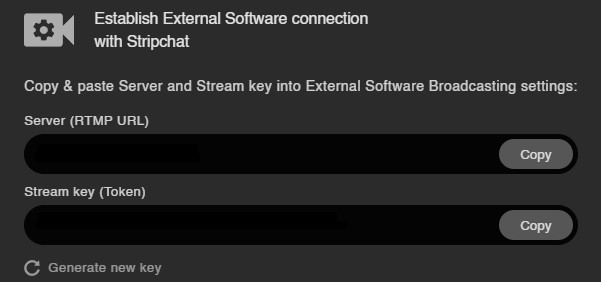
Set up OBS for Stripchat
In OBS, go to Settings → Stream. Select Stripchat from the Service list and paste your key — if it's not listed, choose Custom, paste in the server URL from the step above, then paste your key.
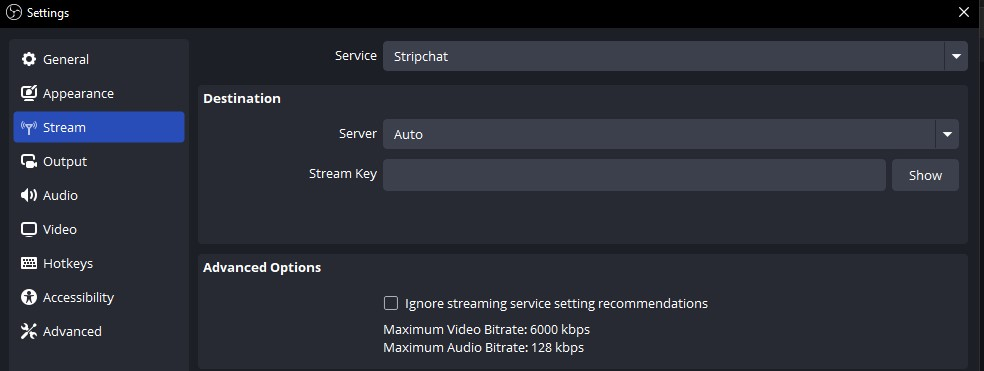
Stripchat settings by resolution
The encoder settings Stripchat documents for each resolution. Stay within these and Stream-Split sends your feed to Stripchat unchanged.
| Resolution | FPS | Video bitrate (kbps) | Audio (kbps) |
|---|---|---|---|
| 320×240 | 30 | 300–600 | 96 |
| 640×480 | 30 | 600–1,000 | 96 |
| 854×480 | 30 | 800–1,200 | 96 |
| 1024×576 | 30 | 1,200–2,000 | 96 |
| 1280×720 | 30 | 1,500–2,500 | 96 |
| 1920×1080 | 30 | 3,000–6,000 | 96 |
Want to also stream to other sites at the same time?
You just did the hard part. To also go live everywhere else you work, do one thing differently:
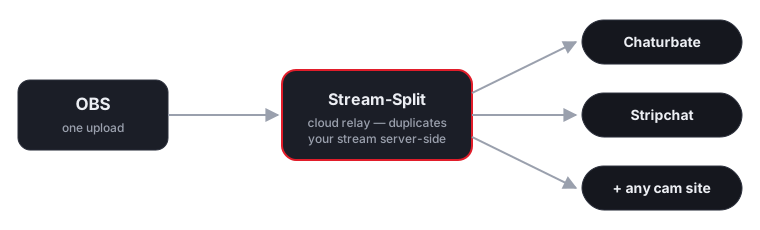
Point OBS at Stream-Split instead
Use Stream-Split's server and key in OBS (shown on your dashboard) instead of Stripchat's directly.
Paste your Stripchat key into the dashboard
The same key from the steps above — plus any other site's key. Switch each to Live, Away or Off with a click.
Live everywhere at once
Your broadcast reaches Stripchat and all your other platforms simultaneously — full quality, no extra CPU.
Many Stripchat models lean on interactive features and crisp video to drive tips, so an unaltered feed matters — Stream-Split forwards your stream to Stripchat exactly as OBS sends it, whether you multistream or not.
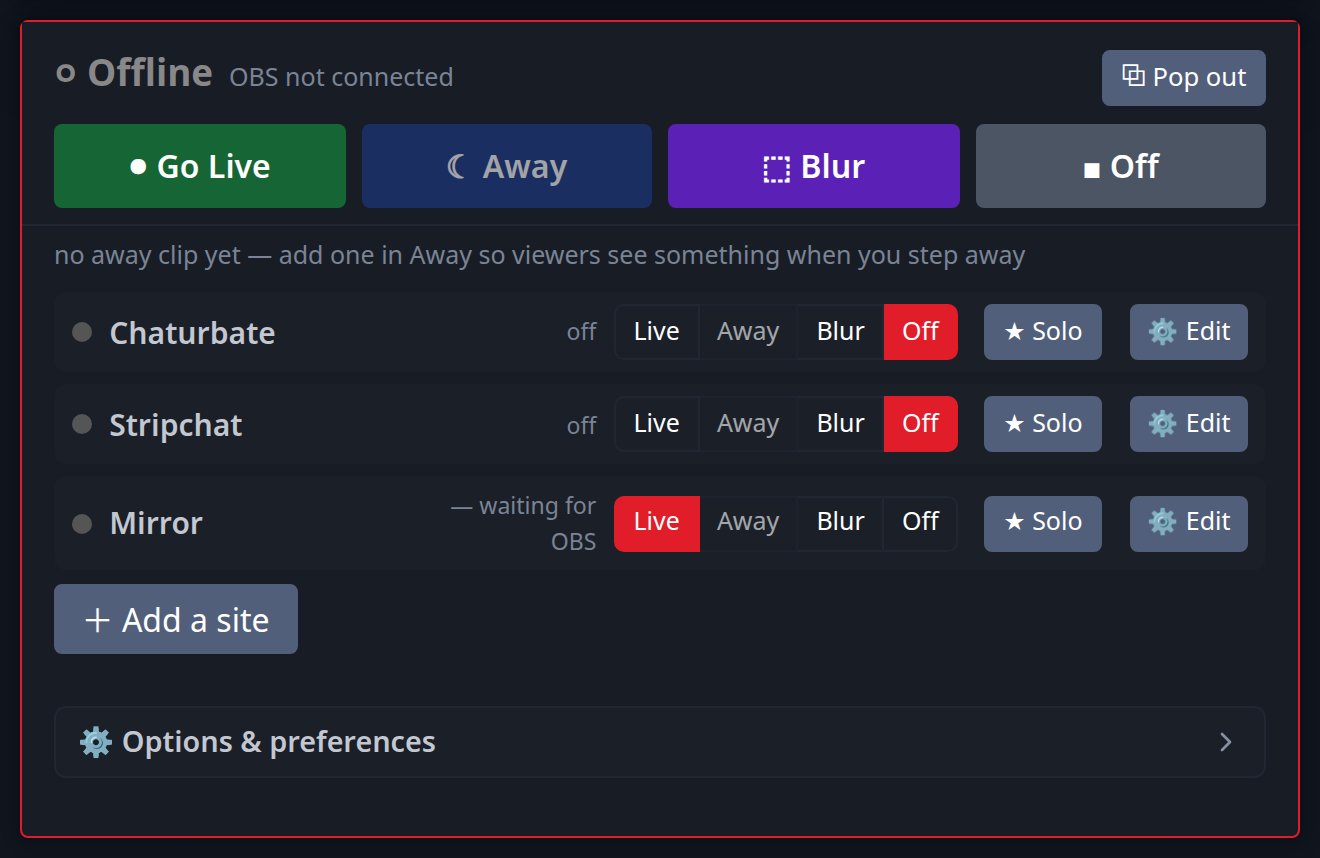
Add as many as you like alongside Stripchat:
New to this? Read cam splitting on different cam sites or the best OBS settings.
Interactive toys keep working
Toy integrations like Lush run directly through the Stripchat platform itself, completely separate from your video broadcast. This means that multistreaming with Stream-Split does not interfere with them in any way. Because our cloud servers deliver your video untouched, your interactive features, tip menus, and alerts will all behave exactly as they do when you broadcast to Stripchat alone. The only difference is that your single OBS output now reaches a much wider audience across multiple platforms simultaneously, while you continue to manage your interactive toys and exclusive private shows normally from your browser.
Where Stripchat sits against the other sites
Stripchat has its own accepted range. What matters when you add a second site is where those ranges overlap — and which site ends up deciding the number.
Stripchat accepts 3,000–6,000, which comfortably contains the 5,000 the group needs — Chaturbate is the binding one, not Stripchat.
Stripchat publishes 1,500–2,500, and the group needs 3,000 because of Chaturbate. Send 3,000 anyway — Stripchat only rejects a feed that comes in under its minimum, not over its maximum.
Stripchat the others what to set in OBS
Adding a second site to Stripchat
Stripchat's own limits are only half the question once you broadcast somewhere else at the same time — you send one feed, so it has to satisfy both sites. Here is what to set for each pairing, worked out from what the two sites publish.
| Stripchat paired with | Send | Video bitrate | Keyframe / audio |
|---|---|---|---|
| + BongaCams | 1080p30 | 4,000 kbps | 2s / 128 kbps |
| + Cam4 | 1080p30 | 4,000 kbps | 1s / 128 kbps |
| + CamSoda | 1080p30 | 3,000 kbps | 2s / 128 kbps |
| + Chaturbate | 1080p30 | 5,000 kbps | 2s / 128 kbps |
| + MyFreeCams | 1080p30 | 4,500 kbps | 1s / 128 kbps |
| + OnlyFans | 1080p30 | 3,000 kbps | 2s / 128 kbps |
Full working: best OBS settings for cam streaming.
Stripchat OBS & multistreaming FAQ
- How do I stream to Stripchat with OBS?
- Log into your Stripchat model account, start your broadcast, and click "Switch to External Broadcast Software" below the broadcast window. Copy the Server URL and Stream Key shown, then paste them into OBS's Stream tab (Settings → Stream).
- Do I still need my Stripchat stream key if I use Stream-Split?
- Yes — paste it into your Stream-Split dashboard instead of directly into OBS. OBS only needs to know about Stream-Split's server and key; we forward your feed on to Stripchat, and anywhere else you add, unchanged.
- Can I be live on Stripchat and other sites at once?
- Yes — one OBS broadcast goes live on Stripchat and every other platform you add simultaneously, without a separate upload per site.
- Will multistreaming reduce my Stripchat quality?
- No. Your feed arrives unchanged, so Stripchat receives the same resolution and bitrate you send from OBS.